
Tech Stuff
Windows Edition Upgrade
by Travis on Jun.09, 2014, under Tech Stuff
Have you ever gone through the process of deploying a one-off Windows server only to discover you’ve gone and deployed Standard Edition as opposed to Data Center?
Ok, so it’s maybe not that common in these days of scripted installs and images, but I figured I’d toss this out there just because sometimes it happens, especially when you’ve got someone who had a product deployed on a single box then decide later they’d like to cluster it. Whatever your reasons are, I’ve had this happen before and it’s always good to keep it handy somewhere, so feel free to bookmark this.
Upgrading a server edition is actually pretty trivial, provided you have a Retail Key, a MAK or are operating with a KMS server onsite (volume licensing). The key is a critical component of being able to upgrade to the target edition you’d like to. For the default KMS Client Setup Keys, please reference the following link from Microsoft which lists all the keys you could need in that deployment type: KMS Client Setup Keys
Now, please take note of the following rules:
- You can only upgrade editions, you *CANNOT* downgrade.
- This works on Standard & Enterprise Edition of Windows, on either core or full deployments.
- The target you upgrade cannot be a DC (domain controller). If you really need to update a DC, demote it, upgrade it, promote it.
What are my options for upgrade?
Well, that’s easy, run the following command on a box and it’ll show you your options:
‘dism /online /get-target-editions’
Your output should look something like this:
PS C:\Windows\system32> dism /online /get-targeteditions
Deployment Image Servicing and Management tool
Version: 6.2.9200.16384
Image Version: 6.2.9200.16384
Editions that can be upgraded to:
Target Edition : ServerDatacenter
The operation completed successfully.
(Windows 2008 would give you options like ServerDataCenter & ServerEnterprise)
Ok, so, you decide you want to upgrade to ServerDataCenter. Great.
To do so, you simply enter in the following:
‘dism /online /set-edition:ServerDataCenter /ProductKey: XXXXX-XXXXX-XXXXX-XXXXX-XXXXX /AcceptEula’
The system will prompt you to reboot and you’ll be on your way.
Deleting Unknown Accounts for Local Profiles
by Travis on Jan.25, 2014, under Tech Stuff
So, you’re still rockin` that old legacy server and you want to clear out some space. You head on over to the control panel, take a look under System/Advanced/User Profiles/Settings and there’s a bunch of accounts listed as “Account Unknown”. “GREAT!” you think to yourself, there’s a bunch of accounts that aren’t needed that I can clear out. You click on one and notice that the delete button is all grayed out.
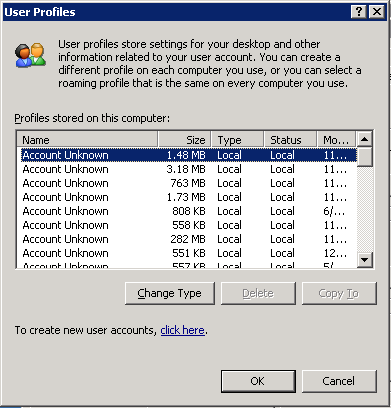
You think to yourself, “fine! I’ll go manually delete these” but when you try to take out that profile folder from Documents and Settings, you get the error:
“Cannot delete NTUSER.DAT: It is being used by another person or program. Close any programs that might be using the file and try again.”
Been there? Yeah, it sucks.
Alas, there is a simple solution. User Profile Hive Cleanup Service.
1. Download the MSI from here.
2. Run uphclean.exe from the installation location where you unpacked the file.
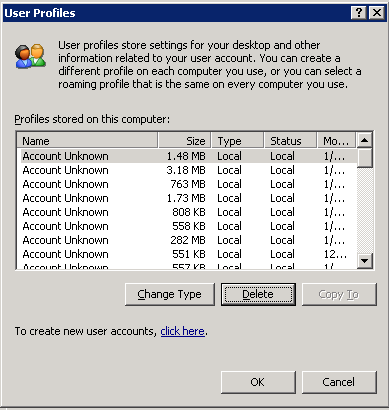
3. The “Delete” button should now be available.
Fun With SQL
by Travis on Mar.26, 2013, under Tech Stuff
Ok, I figured it’s time to post something worthwhile to the geek community. 🙂
Have you ever needed to get stats (via SQL) on all your drives and just get the list of your lettered drives and not your mount points? Kind of a pain in the rear, huh? Never fear, here’s a solution for you!
This all came into play while working on getting some daily reports out for SQL servers that expanded beyond what SCOM could accomplish for my needs. I know some Ops Manager folks out there who just love to say ‘yeah, i can do something like that in SCOM’ but let’s face it… your typical DBA hates your monitoring products so here’s a little something for the SQL freaks out there. Sean Boling, I’m looking at you.
So, we’re using a little C# code here, compiled into a DLL and called via a function. I’ll drop some info below on how to use this in conjunction with David Wisemans DBA Checks Script below so you can put it to good use if you so choose.
Overview of the steps:
1. Create a database to run your DBA Utils from… please don’t put this in master.
2. Configure your SQL server to allow CLR (this is the worst part to stomach, I promise)
3. Create your assembly by pulling in your dll. You must compile this yourself as I won’t be handing out dll’s.
4. Create your function.
5. Run some T-SQL against it to test.
6. Incorporate into your monitoring routines.
Section 1. Pre-Req Steps (covers steps 2-4)
(2 – Configure your SQL Server to allow CLR and allow the DB to run your Assembly)
sp_configure ‘clr enabled’, 1
GO
RECONFIGURE
GO
ALTER DATABASE [DB You Will Create Assembly In] SET TRUSTWORTHY ON;
GO
(3 – Create your DLL & Assembly)
You can download the source code for the DLL from -> HERE <-.
Once compiled, place in a folder you can reach from the machine, in this case C:TEMP.
CREATE ASSEMBLY DiskInfo
FROM ‘C:TEMPDiskInfo.dll’
WITH PERMISSION_SET = UNSAFE
GO
(4 – Create your Function)
/* Object: UserDefinedFunction [dbo].[Get_DiskInfo] */
SET ANSI_NULLS OFF
GO
SET QUOTED_IDENTIFIER OFF
GO
CREATE FUNCTION [dbo].[GET_DiskInfo]()
RETURNS TABLE (
Drive_MountPoint nvarchar(max),
Capacity_MB nvarchar(max),
Used_Space_MB nvarchar(max),
Free_Space_MB nvarchar(max),
Percent_Free_Space nvarchar(max)
)
AS
EXTERNAL NAME DiskInfo.UserDefinedFunctions.GET_DiskInfo
GO
(5 – Test It all Out)
You can accomplish this one of two ways… If you want to just dump out the info and see what it looks like, use the following:
SELECT * FROM dbo.Get_DiskInfo()
If you want to get fancy with it and learn more of what you can do with it, try this:
DECLARE @MBytesToTB float,@MBytesToGB float
SELECT @MBytesToTB = 1048576,@MBytesToGB = 1024;
SELECT drive_mountpoint,
CASE WHEN capacity_mb > @MBytesToTB THEN CAST(ROUND(capacity_mb /@MBytesToTB,1) as varchar) + ‘ TB’
WHEN capacity_mb > @MBytesToGB THEN CAST(ROUND(capacity_mb /@MBytesToGB,1) as varchar) + ‘ GB’
ELSE capacity_mb + ‘ MB’ END as Size,
CASE WHEN used_space_mb > @MBytesToTB THEN CAST(ROUND(used_space_mb /@MBytesToTB,1) as varchar) + ‘ TB’
WHEN used_space_mb > @MBytesToGB THEN CAST(ROUND(used_space_mb /@MBytesToGB,1) as varchar) + ‘ GB’
ELSE used_space_mb + ‘ MB’ END as Used,
CASE WHEN free_space_mb > @MBytesToTB THEN CAST(ROUND(free_space_mb /@MBytesToTB,1) as varchar) + ‘ TB’
WHEN free_space_mb > @MBytesToGB THEN CAST(ROUND(free_space_mb /@MBytesToGB,1) as varchar) + ‘ GB’
ELSE free_space_mb + ‘ MB’ END as Free,
ROUND(Percent_Free_Space,2) AS PercentFree
FROM dbo.GET_DiskInfo()
ORDER BY PercentFree ASC
For those of you who are using the DBA Daily Checks script by David Wiseman, download a replacement for the stored procedure DBAChecks_DiskDrives -> HERE <-. When using this, you do not need the SQLIO package he created to gather disk information.
As always, use at your own risk and have fun. 🙂
Windows 8/Server 2012 on VMWare ESXi
by Travis on Oct.21, 2012, under Tech Stuff
Just a couple of quick notes if you’re installing windows 8/server 2012 on VMWare ESXi.
1. Don’t even bother on anything sub 5.0, specifically patched with ESXi500-201112001 (Patch 02). (reference here)
2. When setting up your virtual machine, go into the advanced options and set the system for EFI boot rather than BIOS boot.
Spent a couple hours trying to figure this out so I figured I’d post up the two pieces to my resolution.

